iPad authentication for print subscribers: step-by-step guide
By Decanter 2012-3-12 16:13:17


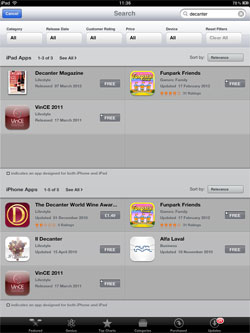
Step 1: Go to the iTunes store, search for Decanter, which should appear as the first option on the top left-hand side and click 'free' to install the app.
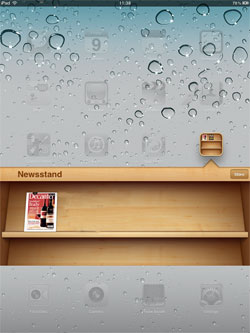
Step 2: The app will then start downloading and will appear in the 'newsstand' app. Click on the magazine to open the app.
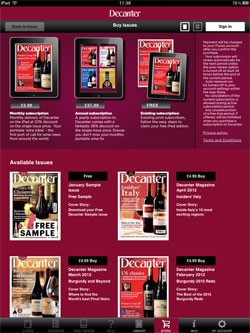
Step 3: Print subscribers should click on the third image which will have the word 'FREE' written underneath it. This will enable you to authenticate your digital issues.
Step 4: The authentication screen will ask you to enter your subscriber details including your print subscription number, email address, post code, first name and last name. It will also ask you to create a password to link to your Decanter digital account. Once you have entered your details the latest issue will automatically start downloading.
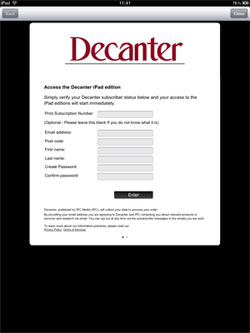
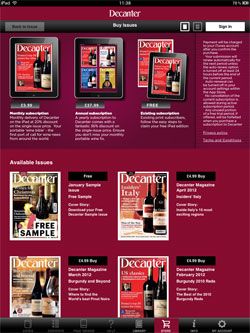
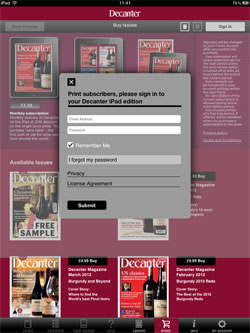
Step 5: Once that issue has downloaded it will be stored in your library (it's the 5th icon along the bottom tool bar on the page). Now you can 'sign in' to your account using your email address and the password you just created. This should give you the options for downloading any back issues that are available - providing you held a subscription for that month.
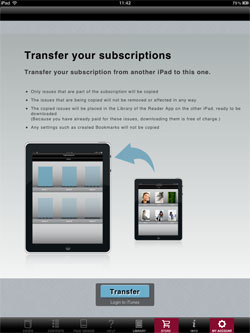
Step 6: Now you have a Decanter digital account you can transfer your downloaded copies onto a number of other iPads. The icon labelled 'My account' (the 8th along the tool bar at the bottom of the page) will give you instructions how to do this.
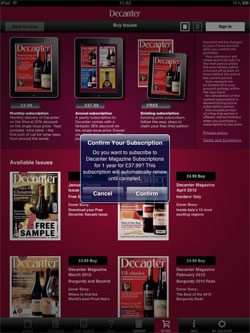
If you're subscription has lapsed or if you have only just subscribed, you can purchase a rolling-monthly subscription (£3.99), an annual subscription (£37.99) or single back issues from 2012 (£4.99).
From Decanter